
Gemini
The Gemini web app at gemini.google.com connects to MoraWP as a custom Connected App. Once added, MoraWP also works in the Gemini mobile app on the same Google Account.
Before you begin
Connect your WordPress website first. Google currently limits custom Connected Apps to:
- people who are 18 or over and in the US,
- personal Google Accounts (work and school accounts are not supported),
- accounts with Keep Activity turned on,
- Gemini in English.
You can add a custom app only from the Gemini web app on a computer.
Add MoraWP in Gemini
- Open gemini.google.com and choose Settings → Connected Apps. If you don't see it, choose Personal Intelligence → Connected Apps.
- Choose + Custom.
- Under MCP Server URL, enter:
https://mcp.morawp.com/mcp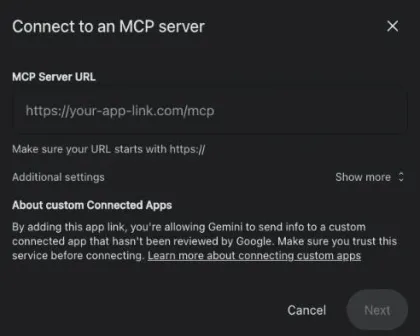
- Leave Additional settings as they are. MoraWP registers Gemini automatically, so no client ID or secret is needed.
- Choose Next and follow the browser sign-in. Then approve access in MoraWP.
MoraWP then appears in Connected Apps with the handle @MoraWP. Its page sets how often Gemini asks before it acts. Keep Write / delete on Always ask so Gemini checks with you before it changes a website.
Use it in a conversation
Type @MoraWP in a new conversation, then ask:
@MoraWP list the websites I allowed for this connection.
Do not create, edit, delete, or publish anything.
Check: Gemini uses MoraWP and returns the expected website. Continue with Read one page to verify WordPress access.
If it does not work
| What you see | Next step |
|---|---|
| No Connected Apps or + Custom | Check the account, country, age, and Keep Activity requirements above. |
| "This MCP server is already connected" | MoraWP is already added. Open it from Connected Apps. |
| Gemini answers without using MoraWP | Start the prompt with @MoraWP. |
| Sign-in fails or approval expires | Start a fresh sign-in; see Agent connection problems. |
| A website or action is missing | Review Missing Abilities. |
To stop access, Disconnect the Agent in MoraWP, then open MoraWP in Gemini's Connected Apps and choose Disconnect. See Manage Agents.
Gemini's interface and availability can change. These instructions were checked against the Gemini web app and Google's custom Connected Apps guide on November 4, 2026.