
Website connection problems
Start with the step that failed: opening the plugin, pressing Connect, approving in MoraWP, or finding the website afterwards.
Connect is unavailable
Open the MoraWP Plugin in WordPress and read the message above the connection panel. Check its requirements and Troubleshoot connection before repeating the attempt.
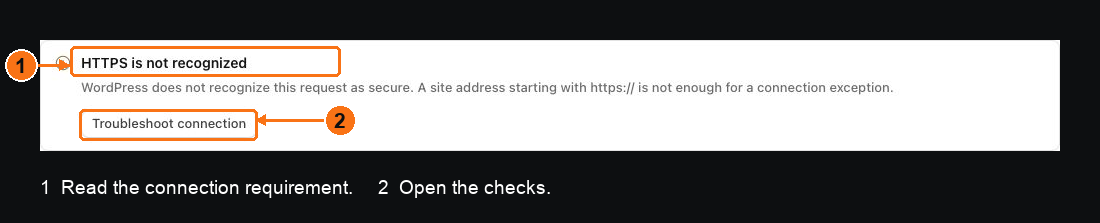
The highlighted message explains the refusal. Open Troubleshoot connection for checks; Connect remains unavailable until the requirement is met.
If the message says HTTPS is not recognized, confirm both a valid HTTPS certificate and correct HTTPS detection inside WordPress. A proxy can serve HTTPS publicly while WordPress still sees an insecure request. Ask your host to configure its trusted proxy correctly; do not disable TLS checks.
Approval expired or did not open
Start a fresh connection from the plugin. Use the new approval page it opens, sign in, and review the intended Workspace and website. Do not reuse or share an old approval URL.
Approval completed but the website is missing
Check the selected Workspace in the Dashboard. Return to the plugin and inspect its connection state; a browser approval page alone does not establish that every part of the handoff completed.
If the website is present but its status is stale, use Check now in its details. Your public website can continue serving visitors while the MoraWP connection needs attention.
Your Agent cannot see a connected website
That is a separate access check. Review the Agent's Workspace and website selection using Access modes. Reinstalling the plugin does not grant an Agent access.
If the problem persists, collect the non-sensitive support details before reconnecting again.