
Quickstart
Connect one WordPress website, authorize one Agent, and read an existing page. You do not need to publish anything or enable high-impact Abilities.
Before you begin
- A MoraWP account and the Workspace you want to use.
- Administrator access to a website that meets the requirements, including recognized HTTPS.
- An AI app with remote MCP and OAuth support; choose its setup guide. You can use its supported web, desktop, IDE, or CLI interface.
- An existing page whose title you can confirm in WordPress. A demonstration website is a good place to start.
1. Connect WordPress
In the Dashboard, select the intended Workspace and open Websites → Add a website. Download the MoraWP Plugin ZIP.
In WordPress, open Plugins → Add Plugin → Upload Plugin. Select the ZIP, install it, and activate the plugin. Older WordPress versions may label the menu Add New Plugin.
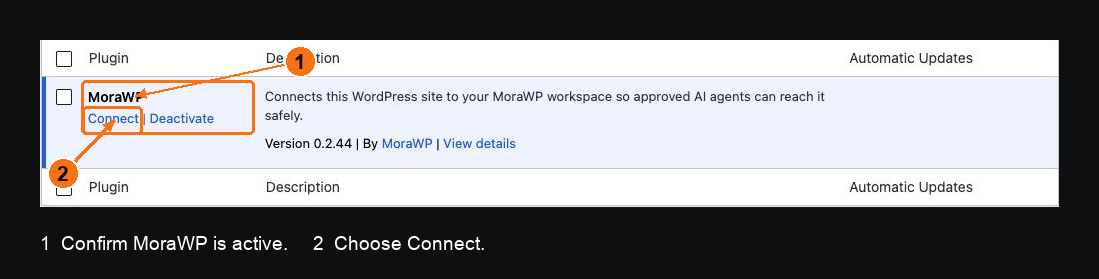
1: confirm the plugin is active. 2: open Connect. The screenshot is from a demonstration installation.
Open MoraWP in the WordPress menu and choose Connect to MoraWP. On the approval page, sign in if needed, choose the Workspace, review the website, and approve.
Check: return to Websites in that Workspace. Your website should appear with its connection status. If the handoff does not finish, use Website connection problems before adding an Agent.
2. Authorize your Agent
Open Agents → Connect an agent in the Dashboard, then choose your AI app. Its MoraWP setup guide opens in a new tab.
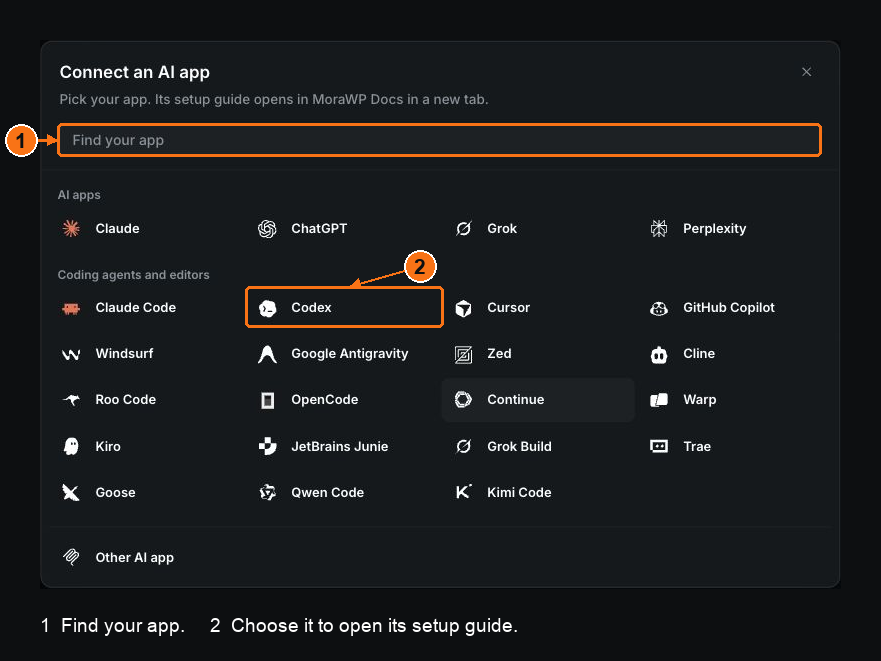
1: find your app. 2: choose the app you actually use. Codex is highlighted only as an example; opening its guide does not create a connection.
Follow that guide to add MoraWP in the AI app. The remote server address is:
https://api.morawp.com/mcp
When browser approval opens, review the Workspace and select only the intended website. Choose Read only, read the data-access notice, acknowledge it, and approve. Return to the AI app after authorization completes.
Check: the connection appears in Agents. Refresh your AI app's tools or start a new conversation if its guide requires that.
3. Read one page
Open Abilities → Manage for the relevant Toolkit and check that the WordPress page-list and page-read Abilities are enabled. The Agent's Read only mode does not override Workspace or website restrictions.
Send this in your connected AI app:
Use MoraWP to call list_websites and let me choose a website.
Call list_abilities for that website, then describe_ability for the
WordPress page-list and page-read Abilities you find.
List pages, let me choose one, and read its title and content using
execute_read_ability. Use returned IDs and the current schemas.
Do not create, edit, delete, publish, run code, or access files.
Choose the connected website and a page from the returned list. Do not invent a page ID or copy one from another website.
Check: the returned title matches that page in WordPress. The content may contain HTML or builder data rather than the final visual layout. The page should remain unchanged.
Check Activity
Open Activity to find the actual page-list and page-read Ability attempts and their results. Website listing and discovery are not customer Ability actions.
A dispatched read uses the Workspace's AI Actions allowance. See AI Actions and limits for what counts.
If you get stuck
- Website missing: confirm the Workspace and the Agent's website selection.
- Ability missing: refresh discovery and check its Integration and access settings.
- Access refused: use Access denied; do not repeat the same request unchanged.
- WordPress tool failed: inspect the actual response using WordPress tool failed.
Continue with Read an existing page, Access modes, or High-impact Abilities before allowing changes.